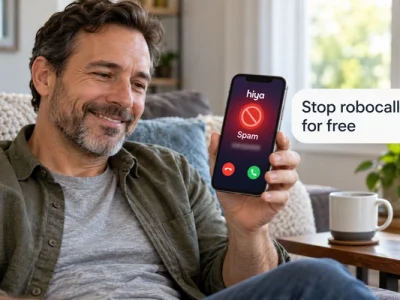
Here is how to block robocalls on Android using tools already built into your phone, in a few minutes.
You will see the exact menu paths for the Google Phone app, Samsung Galaxy phones, and Pixel Call Screen.
Read to the end and most spam calls will stop ringing before you ever see them.
The fastest way to block robocalls on Android
The fastest way to block robocalls on Android is to turn on spam filtering in your phone’s dialer. That means the Google Phone app on most Android phones, or the Samsung Phone app with Smart Call on Galaxy phones.
Google’s support documentation lists the path as Phone app, then More options (three dots), then Settings, then Caller ID and spam. Google says “See caller ID and spam” is on by default and shows business names and warns about likely spam. Turning on “Filter spam calls” in the same menu goes further. Google explains that you then do not get missed call or voicemail notifications for filtered calls. The calls still appear in your call history, and voicemail is still available.
On a Samsung Galaxy, Samsung’s support pages describe the path as Phone app, More options, Settings, Caller ID and spam protection, then switching the toggle on and accepting the terms. You then choose a level: block all spam and scam calls, or only block high-risk scam calls.
The table shows which built-in tool matches each kind of unwanted call.
| Problem | Built-in Android tool |
|---|---|
| Known spam numbers | Filter spam calls (Google Phone) or Smart Call (Samsung) |
| One number that keeps calling | Block or report spam from the call history |
| Private or hidden numbers | Block calls from unknown numbers (Samsung) |
| Unknown callers you might need | Call Screen (Pixel) |
| Sales calls from real companies | National Do Not Call Registry (FTC) |
The Federal Trade Commission (FTC) says call-blocking technology is your best defense against unwanted calls, and it notes that scammers ignore the Do Not Call Registry because they call from anywhere in the world. That is why the filter on your phone matters more than any list. The next section shows what that filter changes in a normal day.
What changes once spam calls stop ringing
Once filtering is on, most robocalls are labeled or sent straight to your call history, so your phone rings mainly for people and businesses you recognize.
Before: your phone buzzes during work with “Scam likely” or a number from your own area code. You answer because it could be the school or the pharmacy, and it is a recording about a car warranty. It happens three or four times a day, and you start ignoring all unknown calls, including the ones that matter.
After: the Google Phone app or Smart Call checks each incoming number against its spam data. Likely spam is filtered silently. A real business shows its name on the screen. On a Pixel, an unknown caller is asked who they are and why they are calling, and you read the answer before you decide to pick up.
The FTC’s plain advice fits here: hang up on phone scammers and hang on to your money. A filter simply does the hanging up for you, before the call ever reaches your ear.
⚠️ Attention: no filter is perfect. Check your call history and voicemail once a day for the first week so a legitimate call, such as a clinic or a delivery, is not lost.
Basic filtering handles most calls. Samsung and Pixel phones add tools that go a step further, and that is next.
Samsung and Pixel settings that go further
Samsung phones can block every call from an unknown number, and Pixel phones can screen unknown callers with Call Screen before your phone rings.
On a Samsung Galaxy, Samsung’s support page lists a setting called “Block calls from unknown numbers” under Phone app, More options, Settings, Block numbers. Turn on the switch and calls with no caller ID are rejected. The same Block numbers screen lets you type a number and tap Add to block it manually, and shows a red minus icon to unblock later. Samsung notes that Smart Call may not be available on all carriers or models.
On a Pixel, Google describes Call Screen under Phone app, More, Settings, Spam and Call Screen (or Call Screen). With automatic screening, the phone answers unknown calls, shows a notification such as “Screening unknown number,” gives you a real-time transcript, and hangs up if it detects spam. With manual screening, you tap “Screen call” when the phone rings and read what the caller says before answering. Google says automatic screening works on Pixel phones in the United States, and that Pixel 7 and newer offer a “Protection level” setting covering spam, potentially faked numbers, and first-time callers.
Whichever phone you have, the settings below cover the most common situations.
Now put it together. The steps below work in this order on most Android phones.
How to block spam calls on Android step by step
You need an Android phone with the Google Phone app or the Samsung Phone app, an internet connection for spam data, and about five minutes.
- 1Open the Phone app and tap the three-dot More options menu, then Settings.
- 2Tap Caller ID and spam (Google Phone) or Caller ID and spam protection (Samsung) and make sure the main toggle is on.
- 3Turn on Filter spam calls on Google Phone, or pick “Block all spam and scam calls” on Samsung Smart Call.
- 4Block repeat offenders from the call history: tap the call, then Block or Report spam (Google Phone), or open the number’s menu and tap Block (Samsung).
- 5Enable Call Screen on a Pixel under Settings, Spam and Call Screen, and choose automatic or manual screening.
- 6Register your number on the National Do Not Call Registry, which the FTC says is free and stops sales calls from real companies.
- 7Review your call history after a few days and unblock any number that turned out to be legitimate.
Common mistakes: turning on “Block calls from unknown numbers” and then missing a call from a doctor’s office that hides its number. Using an old dialer app instead of the Google Phone app. Expecting the Do Not Call Registry to stop scammers. If a menu name looks different on your phone, search for “spam” inside the Phone app settings, since carriers sometimes rename options.
The questions below address the details people ask most after setting this up.
Frequently asked questions about blocking robocalls
Quick answers based on Google, Samsung, and FTC documentation.
How do I block spam calls on Android without an app?
Use the dialer that came with the phone. In the Google Phone app, go to Settings, Caller ID and spam, and turn on Filter spam calls. On Samsung, go to Settings, Caller ID and spam protection, and choose a blocking level. No download is needed.
How does a Samsung phone block unknown callers?
Samsung’s support page lists Phone app, More options, Settings, Block numbers, then the switch “Block calls from unknown numbers.” This rejects calls with no caller ID. Samsung notes the option depends on Smart Call availability, which varies by carrier.
What does Pixel Call Screen do with robocalls?
Google says Call Screen answers unknown calls, asks the caller who they are and why they are calling, shows you a transcript, and hangs up if it detects spam in automatic mode. It runs on the device without using mobile data or Wi-Fi.
Will filtered calls still leave a voicemail?
With Filter spam calls on in the Google Phone app, Google says you do not get missed call or voicemail notifications for filtered calls, but the calls stay in your history and you can still check voicemail.
Does the Do Not Call Registry stop robocalls?
Only partly. The FTC says the registry stops sales calls from real companies, but scammers do not care whether you are on it. Use the registry for legitimate telemarketers and your phone’s filter for everything else.
Call blocking is one of several phone safety topics covered here. This is how the guides fit together.
How this site helps you make your phone safer
This site explains the tools already on your phone in plain language, so you can fix everyday problems without buying anything.
The Apps and Tools section is written for people who want the setting, the menu path, and the trade-off, not a sales pitch. Blocking robocalls on Android is a typical example: the fix is free and built in, but the menu names differ between Google, Samsung, and carrier versions, and a wrong toggle can silence a call you needed. Each guide names where a fact came from, in this case Google’s Phone app help pages, Samsung’s Galaxy support pages, and the FTC’s consumer guidance.
Related guides cover the same job on iPhone, what a third-party call blocker adds when the built-in filter is not enough, how to spot scam texts, and how to check app permissions before you install something new. All of them follow the same rule: if the phone can already do it, start there.
When a company or an agency changes a menu, the guide is updated. If a step here does not match your screen, your phone maker’s support site is the place to confirm the current path.
Turn on the filter today
You have the menu paths, the levels, and the one setting to be careful with. Open your Phone app now, turn on spam filtering, and block the number that called you last. That takes less time than listening to one robocall, and it keeps working every day after.
If you use a Pixel, add Call Screen. If you use a Samsung, pick the Smart Call level that fits how many unknown calls you actually need. Then check your history for a week and adjust.
ℹ️ Important: this is an independent site. It is not affiliated with any government agency or with Google, Samsung, or any company mentioned. Menu names and features vary by phone model, Android version, and carrier; confirm the current steps on your phone maker’s support site.