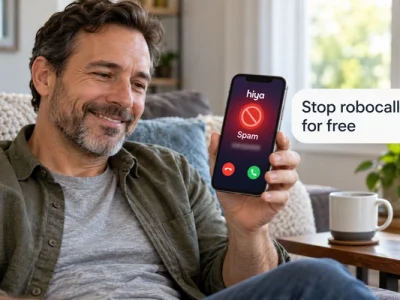
Learning how to block spam calls on iPhone takes five minutes, and the best tools are already built into Settings.
Below you see which switch silences unknown numbers, which one screens callers, and what to leave off.
Read to the end and your phone will stop ringing for robocalls by tonight, without paying for anything.
How to block spam calls on iPhone: the settings that work
To block spam calls on iPhone, open Settings, go to Apps, tap Phone, and turn on Silence Unknown Callers or Screen Unknown Callers; then use Call Filtering to move suspected spam into a separate list. Apple Support describes these as the built-in ways to stop calls from numbers that are not in your contacts.
Each option does a different job, and you can combine them:
| Setting | What it does |
|---|---|
| Silence Unknown Callers | Unknown numbers go straight to voicemail, no ring |
| Screen Unknown Callers | Asks the caller why they are calling before it rings |
| Call Filtering: spam filter | Sorts suspected spam into its own list |
| Block Caller | Blocks one specific number from Recents |
| Carrier and third-party apps | Label or block calls using outside databases |
According to Apple Support, with Silence Unknown Callers turned on, calls from unknown numbers are silenced and sent to voicemail, and they still appear in your Recents list, so you lose nothing. Screen Unknown Callers goes one step further: the caller is asked why they are calling before your phone even rings, and you see the reason on screen. Call Filtering for unknown callers moves missed calls and voicemails from unknown numbers to a separate Unknown Callers list, and the spam filter toggle does the same for suspected spam.
The right combination depends on how many calls you get from people who are not saved in your contacts. Before choosing, it helps to picture what a normal day looks like once the ringing stops.
What changes once unknown callers stop ringing
Once the settings are on, a robocall becomes a silent entry in a list instead of an interruption at work, at dinner or while driving. Your phone only rings for saved contacts, recent outgoing numbers and Siri suggestions, which is how Apple designed Silence Unknown Callers.
Illustrative example: a home health aide gets six unknown calls during a morning shift. Each one forces her to check the screen and decide whether it is the agency or a scam. With Screen Unknown Callers set to ask the reason, a real client’s family member types “calling about your visit today” and the phone rings. The car warranty robot hangs up when asked and never reaches her.
The Federal Communications Commission (FCC), the agency that regulates phone carriers, has repeatedly told consumers that the safest response to an unknown call is not answering it and never pressing buttons or sharing information when a recorded message asks. The iPhone settings automate that advice so you do not have to make the call each time.
⚠️ Watch out: if you are waiting for a call from a doctor’s office, a job interview or a repair technician, their number may not be saved. Check voicemail and the Unknown Callers list once a day, or turn silencing off for that afternoon.
Because each mode handles that trade-off differently, the next section compares them so you can pick the right one.
Which iPhone option to pick: silence, screen or filter
Silence Unknown Callers is the strictest option, Screen Unknown Callers is the most flexible, and the spam filter is the lightest touch; most people land on screening plus the spam filter. Here is how they differ in practice.
Silence Unknown Callers
This is a single switch under Settings, Apps, Phone. Apple Support states that calls from unknown numbers are silenced and sent to voicemail. It is ideal if almost everyone who legitimately calls you is already in your contacts. The downside is that a new doctor, school or employer will land in voicemail on the first try.
Screen Unknown Callers
Under the same Phone settings, Screen Unknown Callers offers three choices: Never, Ask Reason for Calling, and Silence. With Ask Reason for Calling, Apple says the caller is asked why they are calling before your phone rings, and you can decide from the screen. Apple notes that Live Voicemail must be enabled for this feature on earlier iOS versions, so update your phone if the option is missing.
Call Filtering and the spam filter
Call Filtering, also in the Phone settings, sorts your call list rather than stopping calls. With Unknown Callers filtering on, missed calls and voicemails from unknown numbers are moved to an Unknown Callers list. With the spam filter on, suspected spam calls are organized into a separate list. Your main Recents view stays clean, and nothing is deleted.
The spam filter depends on your carrier identifying a call as likely spam. Carrier labels come from caller ID authentication and call analytics that the FCC requires phone companies to use, but no label catches every scam. Treat it as a helper, not a wall. Now that you know the tools, here is the exact setup order.
How to set up the iPhone spam call filter step by step
Before you start, update to the latest iOS version, because the Screen Unknown Callers and Call Filtering options only appear on recent releases, and make sure the people you need are saved in Contacts.
- 1Open Settings, tap Apps, then tap Phone to reach the calling options.
- 2Tap Screen Unknown Callers and choose Ask Reason for Calling, or choose Silence if you prefer voicemail only.
- 3Tap Call Filtering and turn on the spam filter toggle, plus Unknown Callers if you want those calls in their own list.
- 4Block repeat offenders: in the Phone app, tap Recents, tap the number, scroll down and tap Block Caller.
- 5Review your blocked list under Settings, Privacy & Security, Blocked Contacts, and remove any number you blocked by mistake.
- 6Check your carrier’s free tools in its app or account page, where most major carriers offer spam labeling or blocking at no charge.
Common mistakes: turning on Silence Unknown Callers the day you are expecting an important call, and blocking a spoofed number that a scammer will never use again. Blocking individual numbers rarely helps with robocalls, because the FCC explains that scammers spoof caller ID and rotate numbers. If calls still get through, the screening and filtering settings are doing more work than the block list ever will.
Frequently asked questions about blocking calls on iPhone
Quick answers to what people ask most after turning these settings on.
Does Silence Unknown Callers on iPhone block the call or just mute it?
It mutes it. Apple Support says calls from unknown numbers are silenced and sent to voicemail, and they still show in Recents. The caller can leave a message, and you can call back if it was real.
Is the iPhone spam call filter free?
Yes. Silence Unknown Callers, Screen Unknown Callers, Call Filtering and Block Caller are part of iOS at no cost. Carrier spam labels are usually free too, though some carriers sell premium tiers you do not need for basic protection.
Why do I still get spam calls after blocking numbers?
Because robocallers spoof caller ID and change numbers constantly, as the FCC explains in its consumer guides. Blocking one number stops that number only. Screening and filtering catch calls by behavior, not by number, so they work far better.
Where do silenced or filtered calls go?
Silenced calls go to voicemail and appear in Recents. With Call Filtering on, missed calls and voicemails from unknown numbers move to an Unknown Callers list, and suspected spam moves to a spam list inside the Phone app. Nothing is deleted.
Should I report spam calls, and where?
Yes, when you can. The FCC accepts consumer complaints about unwanted calls, and the Federal Trade Commission (FTC) runs the National Do Not Call Registry, where you can register your number and report violations. Reports help regulators trace and fine callers.
Why this guide sticks to Apple’s own settings
This site covers apps and tools for people who want their phone to work for them, not against them, without paying for features they already own. That is why this guide starts with the switches Apple built into iOS and documented on Apple Support, and only then mentions carrier tools and third-party apps.
Paid call-blocking apps can add value, especially their spam databases, but they also ask for access to your contacts and call history. Before installing one, read what it collects, check that it is on the App Store, and confirm the subscription price. For most people, the built-in settings plus the carrier’s free label are enough to cut the noise dramatically.
Every setting path here was checked against Apple Support articles on silencing unknown callers, screening calls and blocking numbers, and the consumer guidance from the FCC and the FTC on unwanted calls. Menu names can move between iOS releases, so if a label looks different, search Settings for the feature name.
Turn on one setting now and adjust later
You wanted to know how to block spam calls on iPhone, and the answer fits in one line: Settings, Apps, Phone, then turn on screening and the spam filter. Start with Screen Unknown Callers set to Ask Reason for Calling, add the Call Filtering toggles, and block any number that keeps coming back.
Give it a week. If real calls are getting caught, switch screening to a lighter option; if spam still slips through, try Silence Unknown Callers and your carrier’s tools. The settings are reversible, and the quiet is immediate.
ℹ️ Important: this is an independent informational site, not affiliated with any government agency or company mentioned, including Apple and phone carriers. Feature names and menu locations change with software updates; confirm current steps on Apple Support and with your carrier.